




Happyjokers Login: Account Access and Profile Management
The Happyjokers login connects registered users to their personal dashboard and balance. The same area contains activity records and security settings. Your account also opens eligible real-money functions. Members can review active tournaments and current promotion details and keep saved games linked to their profile. We keep registration and account access in one clear flow, so users can manage their profile without moving between unrelated pages.


Happyjokers Registration
Registration creates a personal profile for players who have finished using demo access and want to use the full platform. After signing up, members can manage their details and track account activity. The profile also connects them with deposit and withdrawal functions. Bonus information and tournament access appear in the same Happy Jokers account area. Each user should enter accurate information because the same details support later security and identity checks.
Create Your Account
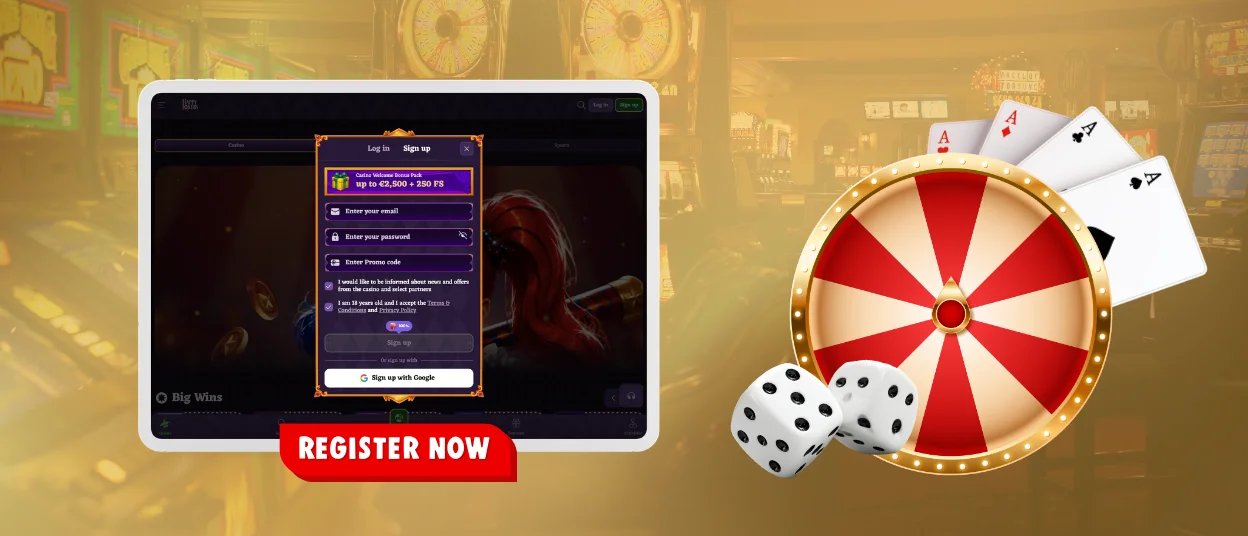
- Open the Happyjokers website and select the “Sign Up” button in the main navigation.
- Enter an active email address that you can access during registration and for future account recovery.
- Create a strong password that meets the requirements shown in the registration form.
- Confirm that you meet the age requirement, then review the terms and privacy information.
- Add a promotional code before submitting the form if you already have a valid code.
- Complete the form and follow the confirmation instructions sent to your registered email address.
- Return to the website and enter the credentials you created to open the account dashboard.
After confirmation, Happy Jokers members can complete their first Happyjokers login. Accurate registration data helps us process verification requests and protects the profile when we detect unusual activity.
Happyjokers Login and Account Management
Returning players select “Log In” and enter the email address linked to their profile. They also enter the matching password. When two-factor authentication is active, we request the current security code. Once the credentials are accepted, we open the personal dashboard with the tools connected to that user.
The same profile can be accessed through compatible desktop and mobile browsers. We keep account information linked to the registered profile. Balances, settings and recent activity therefore stay available when members change devices.
| Profile section | Main function | Practical use |
| Wallet | Shows real funds and withdrawal information | Helps players distinguish playable money from funds connected to bonus conditions |
| Activity history | Records recent logins and relevant account events | Gives users a clear record for reviewing activity and spotting unfamiliar actions |
| Personal settings | Stores selected contact details and profile information | Keeps account data accurate for support and verification |
| Responsible play settings | Provides account controls for spending and activity limits | Supports structured account use and clearer personal boundaries |
The profile can display current account messages and eligible promotions. Tournament information appears there as well. Members can check the applicable conditions inside the account area before activating an offer or joining an event.
Protect Your Account Access
- Use a unique password that is not connected to another website or service.
- Enable two-factor authentication and store any backup codes away from the device used for play.
- Review login records and transaction history at regular intervals.
- Sign out on shared devices and close active sessions when an unfamiliar entry appears.
These habits reduce the risk of unauthorized access and make unusual activity easier to identify. When a login or transaction does not match your actions, change the password before contacting support.
Forgot Your Password?
Open the Happyjokers login window and select “Forgot Password?”. Enter the registered email address or phone number requested by the recovery form. We then send a recovery link or confirmation instruction to the contact details connected to the account.
Create a new password that differs from earlier passwords and is not used elsewhere. Check the spam folder when the recovery message does not appear in the main inbox. Our support team can assist when the registered contact details are no longer accessible.
Verification at Happyjokers Casino
We use account verification to confirm the player’s identity. The review also checks the registered address and ownership of the selected payment method. This process supports account security and must be completed before the first withdrawal.
An accepted identity document confirms the personal details entered during registration. A recent utility bill or bank statement provides address evidence. Payment confirmation connects the account holder with the method used for deposits or withdrawals.
After submission, we check the files and send the result to the registered contact method. Happy Jokers support can explain which document is required for a specific profile. Members should never send sensitive files to an unconfirmed email address. External messages or pages should only be used when our support team confirms them.
FAQ
How can I verify my account?
Open the verification section in your profile and upload the documents requested for your account. We first confirm your identity and address information. We then review payment ownership when that evidence is required. Keep every file clear and make sure the details match the registration form.
Can I change my password or email address?
You can update your password through the security settings after entering the current password. An email change requires confirmation through the new address, so open the verification message to complete the update. Contact support when you no longer control the original email account.
What should I do if my account is locked?
Check the inbox associated with your profile, as our security notice includes the reason and the next required action. Stop repeated login attempts, since additional failures can extend the restriction. Use the official live chat when no message has arrived or the account remains unavailable after completing the stated checks.
How do I close or temporarily suspend my account?
Use the responsible play controls in the profile to apply the available limits. For a temporary suspension or permanent closure, contact support via your registered account and follow the instructions for your profile. We will confirm the next step through the registered contact method.


